
A useful container plan starts with measured cargo and realistic handling rules, not a picture of a full container. This guide walks through preparing inputs, comparing placements and checking what remains outside the planning model. Use the CBM3 3D container loading planner alongside your actual equipment specifications.
New to the process? Read the beginner preparation checklist first. If you only need shipment volume, use the separate CBM volume calculator.

The workflow: verify equipment, enter packed units, set honest handling rules, calculate, review placed and unplaced cargo, then export the completed plan with its assumptions. The example tests 55 entered items; it does not search for an unlimited-order maximum.
1. Confirm the equipment you will load
Obtain usable internal dimensions, doorway clearance, rated payload and relevant floor or contour limits from the equipment owner or carrier. Nominal size is not usable space. Start with the matching loading-space guide, then compare its planning defaults with the assigned unit.
CBM3 has 36 predefined load spaces plus Custom Size. Profile warnings and limitations matter. Custom dimensions define an envelope; they do not establish structural ratings or missing door measurements.
For this example, choose 20DC: a 589 x 235 x 239 cm planning envelope and a 28,200 kg cargo limit. The default preset has no verified door opening. Check the actual doorway separately, including any clearance needed for handling equipment.
2. Measure the packed transport units
Enter outside packed width, length and height, quantity and weight per item. Include packaging. If the unit is already palletized, include its base height, tare and overhang once; do not palletize it again. Loose cartons that need pallets use a different workflow.
Select centimetres and kilograms for this worked order. Do not put inches into centimetre fields or a whole row’s weight into a per-item weight field.
| Row | Width (cm) | Length (cm) | Height (cm) | Quantity | kg per item | Row m3 | Row kg |
|---|---|---|---|---|---|---|---|
| Cartons | 60 | 80 | 40 | 45 | 20 | 8.640 | 900 |
| Cases | 100 | 120 | 100 | 10 | 125 | 12.000 | 1,250 |
For each centimetre-based row, volume is width x length x height x quantity / 1,000,000. For the cartons: 60 x 80 x 40 x 45 / 1,000,000 = 8.640 m3. Row weight is quantity x weight per item.
The totals are 55 items, 20.640 m3 and 2,150 kg of entered cargo. Pallets, dunnage or securing materials not entered are not included. Checking these subtotals detects input mistakes; it does not prove physical fit.
3. Set handling and stacking permissions
Horizontal Only is the default: the footprint can turn while the entered height stays unchanged. Select Full 3D Rotation only where the real item may rest on another face. Do not overturn loaded pallets or ignore This Side Up restrictions.
- Set non-stackable or maximum stack-weight restrictions to match the packaging.
- Record fragile handling and any delivery-stop constraints.
- Use global loading rules deliberately; a partial-support option is not a universal safety approval.
- Do not relax real restrictions merely to improve the displayed fill.
To reproduce this example, use Box and Horizontal Only for both rows, stacking enabled, This Side Up and Fragile off, maximum stack weight unspecified, Normal priority and no delivery stop. Leave palletizing off and apply no global rules. These are synthetic test assumptions, not blanket permissions for real goods.
4. Generate a first 3D plan
Press Plan 3D Cargo Loading. Standard non-palletized mode compares Max Volume and Best Balance; palletized mode retains its single pallet-plan flow. Wait for calculation to complete before interpreting the displayed simulation.
| Method | Entered | Placed | Unplaced | Containers | Placed cargo m3 | Placed cargo kg |
|---|---|---|---|---|---|---|
| Max Volume | 55 | 55 | 0 | 1 | 20.640 | 2,150 |
| Best Balance | 55 | 55 | 0 | 1 | 20.640 | 2,150 |
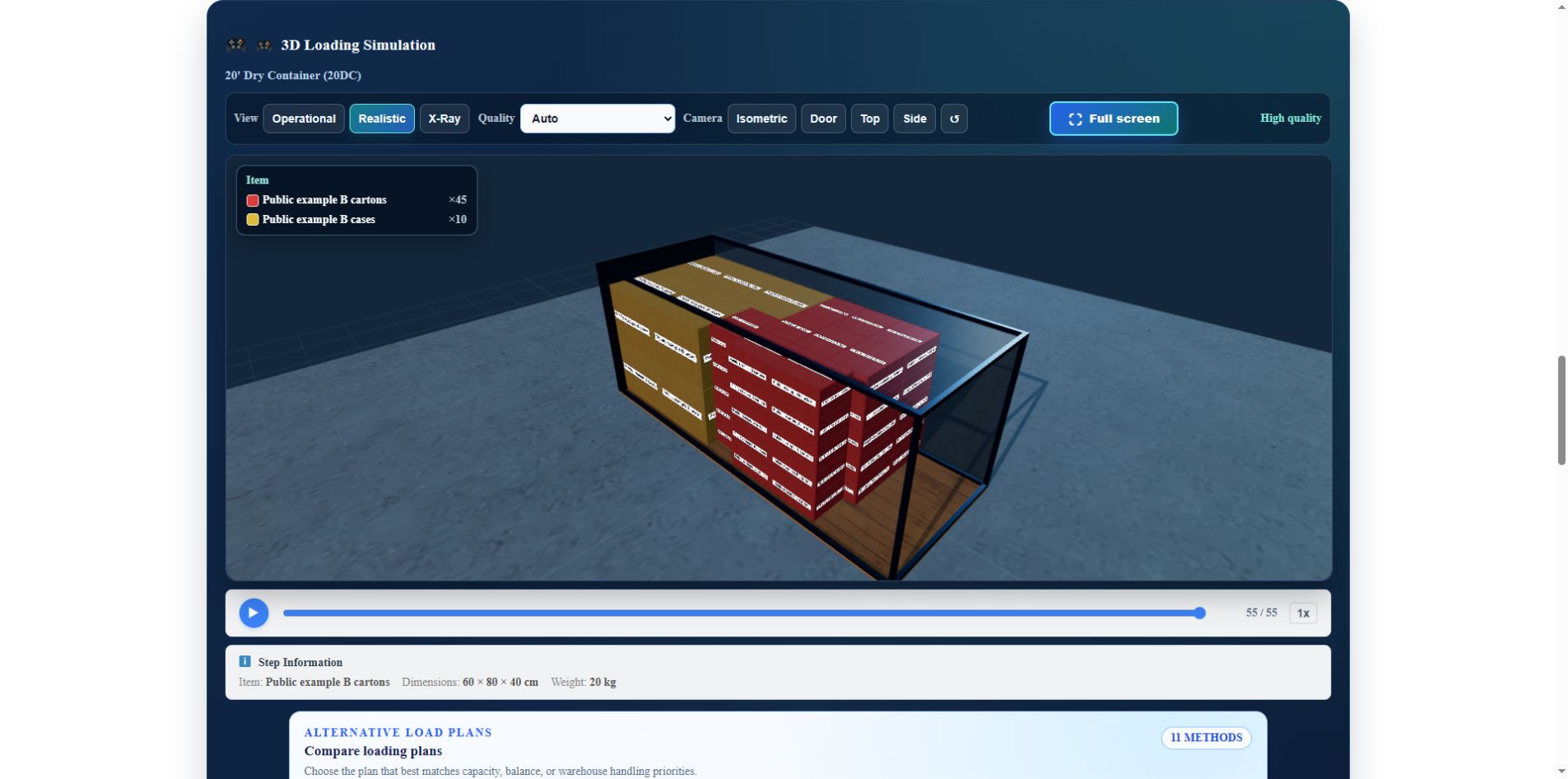
The same-day browser test recorded 55/55 for both methods. The checked engine evidence covers counts, orientation, bounds, collisions, support and entered cargo weight. It does not establish maximum capacity or promise identical coordinates on every run. A completed calculation with unplaced items is still an incomplete shipment.
5. Compare an alternative only when it is relevant
Deeper Search, PRO Optimization, Easy Loading and other specialized strategies are available when their cargo and equipment conditions are met. Compare unchanged quantities and handling rules. PRO has an explicit confirmation flow and its own model; it is not a safety certificate.
The ordinary Max Volume and Best Balance search budgets are six seconds each in this version. Other paths differ. Budgets limit search work; they are not fixed waiting times or guarantees of a global optimum. While another method is running, do not mistake the older simulation for its completed result.
6. Inspect quantities, orientation and unassessed checks
- Use Step Information to examine dimensions, orientation and loading sequence.
- Check every row’s placed and unplaced count, plus every container if the result uses several.
- Review pallet assignments, stack restrictions, support and equipment warnings.
- Read estimated center of gravity as an estimate from known item and pallet data, not weighing or an axle-load measurement.
- Recheck manual reallocations and any inputs changed after calculation.
The example uses about 62.4% of the 20DC model’s interior volume. Remaining volume is not necessarily a usable gap. Actual door access, forklift movement, floor loading and securing still need separate review.
Why does the report say Not assessed? The sample’s cargo subtotal is known, but its full material inventory, equipment identity, tare and transport records are not completed. Missing data must not silently become zero. A successful 55/55 placement does not turn those unassessed transport checks into passes.
7. Export the selected result and preserve its inputs
Use CSV or XLSX to keep cargo inputs and supported rules. After importing a file, check units, quantities and rotation permissions. The spreadsheet is an input/output format; it does not run the CBM3 optimizer inside Excel.
Download the worked example report (PDF, five pages) to inspect the selected Max Volume result. Page 1 summarizes 55 placed items, zero unplaced, 20.640 m3 and 2,150 kg of cargo. Pages 2-3 retain the unassessed transport checks. Pages 4-5 show four loading steps whose counts total 45 cartons and 10 cases.
This unchanged file was generated in the local test installation on 6 October 2026; its header displays 127.0.0.1. It contains synthetic cargo, not customer data, and is not a VGM declaration or an approved securing plan. Export a new report whenever the order or constraints change.
Basic planning and PDF export are available without registration in free mode. Cloud project saves require a signed-in owner. Local History and Templates belong to the browser, not a cross-device backup service.
Copy public link puts shipment inputs into a shareable URL. Send it only to intended recipients. Reopening can recalculate with the available product version and change the arrangement. Review warnings; an on-demand method may need to be requested again, and PRO confirmation is not bypassed.
Common container-planning questions
Why does my cargo not fit when total CBM is low?
Volume does not capture shape, usable gaps, rotation or stacking restrictions. Check the unplaced row, its packed dimensions and the real equipment. Do not reduce entered measurements to force a fit.
Should I choose a high cube or allow Full 3D Rotation?
Those are different decisions. Equipment choice changes the load space; rotation permission changes how goods may be handled. Test suitable equipment with the same honest cargo rules. Never grant turning permission solely to improve utilization.
Does a completed plan satisfy transport documentation?
No. Actual equipment condition, securing, route-specific requirements and documentation remain separate. A cargo subtotal or exported planning PDF is not verified gross mass.
Final planning checklist
Confirm packed measurements, units, equipment, payload, rotation, stacking, placed/unplaced counts, access and real securing requirements. Keep the inputs and completed result together, then have the responsible loading team review the plan. For capabilities rather than this procedure, see CBM3 load-planning software.
References and evidence date
References: CBM3 11.63.53 profile, source checks, synthetic Chrome test and original five-page report; IMO/ILO/UNECE, CTU Code; IMO, Verification of the Gross Mass of a Packed Container. Reviewed on 6 October 2026.
The CTU Code is non-mandatory packing and securing guidance. For applicable vessel loading, SOLAS VGM responsibilities require a separate verified packed-container mass process. Neither this example nor the software’s support or static model is CTU certification, CSC inspection or a VGM declaration.