
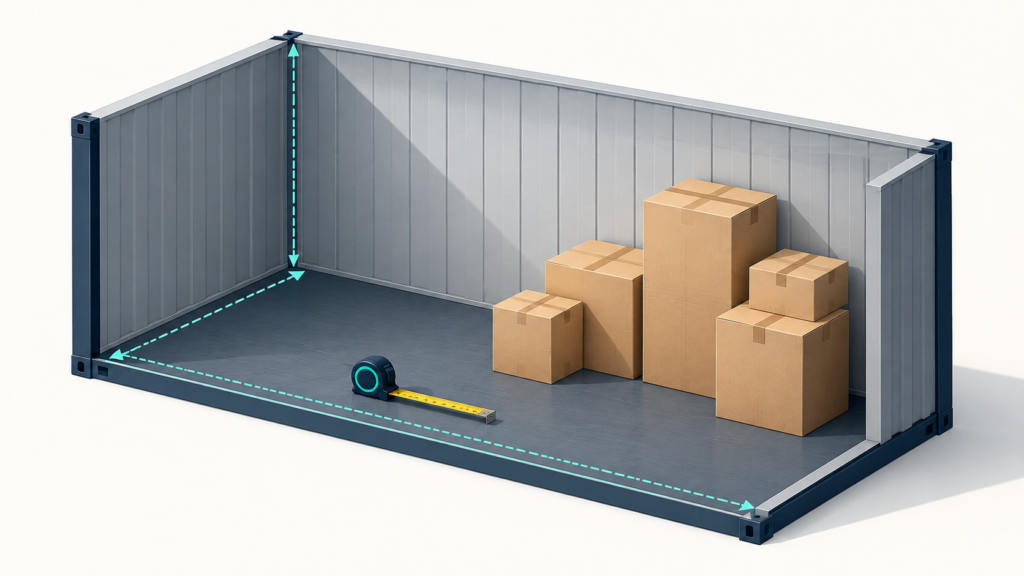
A custom cargo-space calculator tests your entered cartons against dimensions you supply. It does not know the inside of your vehicle, crate or compartment until you measure it. Start with a clear rectangular space, keep each carton size on its own row, and compare placed and unplaced quantities rather than relying on cubic volume alone.
Open the Custom Size cargo planner. Select Custom Size if a saved plan or an existing selection takes precedence. Enter your measurements before starting a calculation; opening the link does not run a plan.
What measurements should I enter?
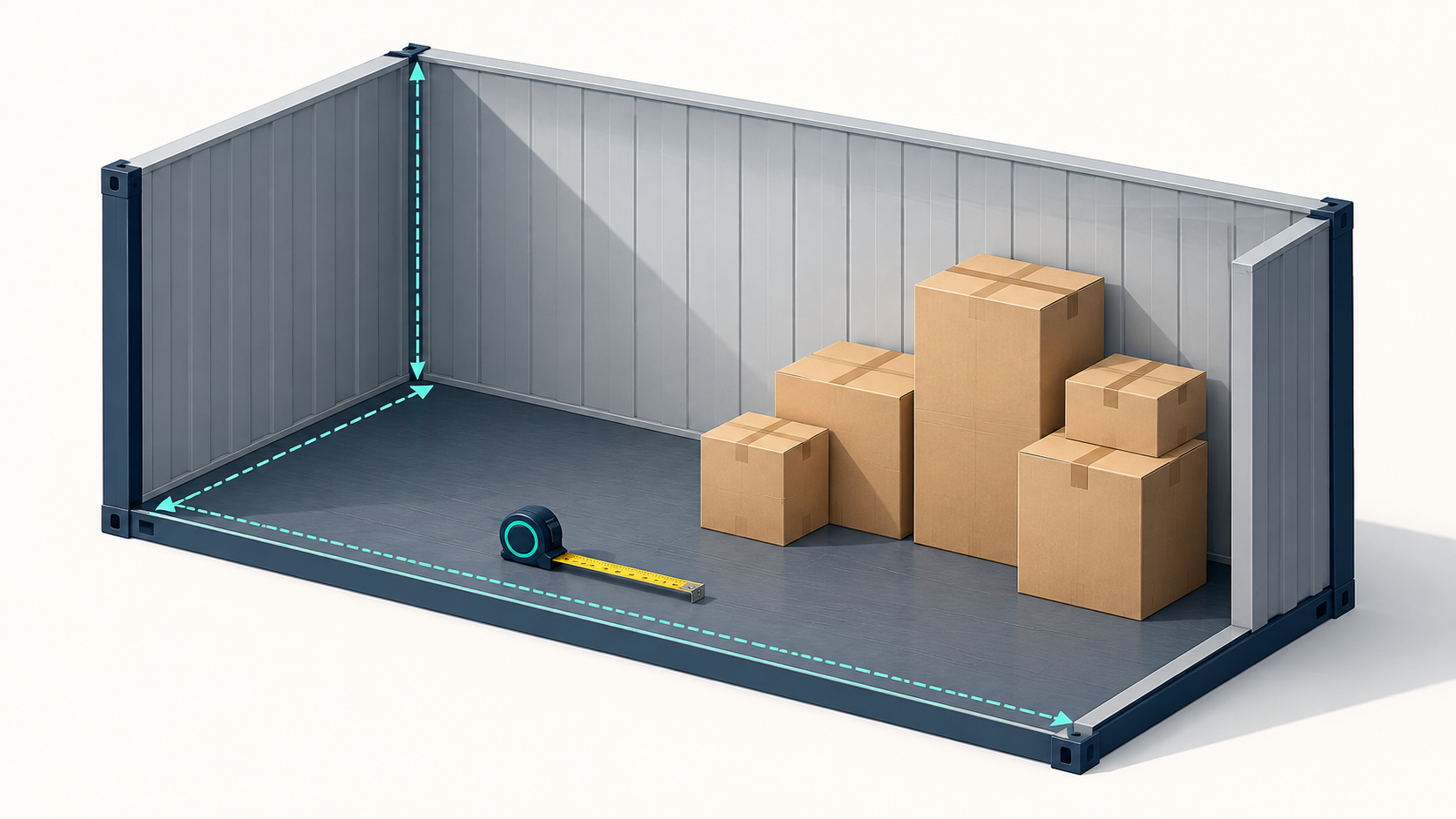
- Internal length, width and height: use unobstructed cargo-clear measurements, not the outside dimensions or a vehicle’s advertised size.
- Packed product dimensions: include packaging, skids and protruding parts. For an already loaded pallet, use its complete outer footprint and total height.
- Quantity and weight: enter the number of units and the gross weight of each entered unit. Keep the available cargo-weight limit separate from the weight of the empty equipment.
- Handling rules: record which faces must stay upright, whether units can carry other cargo, and any known stacking limit.
- Access and working clearance: record the door, threshold, handling equipment and space needed to turn a load separately. A rectangular fit does not prove a loading path.
Wheel arches, slopes, pillars, refrigeration machinery and an aircraft ULD’s contour cannot be represented accurately by increasing or decreasing one generic box dimension. Do not use Custom Size to bypass an unavailable equipment profile. If you cannot define an unobstructed rectangular region, obtain an appropriate measured model before treating the result as a physical fit assessment.
CBM is a volume calculation, not a box-fit answer
For centimetres, cargo CBM equals length x width x height x quantity / 1,000,000. A 200 x 100 x 100 cm space has a geometric volume of 2 m3. Six 50 x 50 x 50 cm cartons total 0.75 m3. Their volume uses 37.5% of that rectangle, but the fit still depends on the actual dimensions, rotation and stacking rules.
A very tall package can have less volume than the compartment and still fail to fit upright. Likewise, empty volume spread across several narrow gaps may not accommodate one more carton. See the entered-quantity box-fit guide for single-size and mixed cargo.
Three reproducible Custom Size examples
These synthetic examples were run against the frozen CBM3 11.63.56 standard packing engine on 9 October 2026, Europe/Istanbul. All use a 200 x 100 x 100 cm rectangular space with a 500 kg cargo limit. They are software examples, not a shipment approval or a search for maximum capacity.
| Entered cargo | Rotation rule | Recorded result |
|---|---|---|
| 6 cartons, 50 x 50 x 50 cm, 10 kg each | Horizontal only; stackable | 6 placed, 0 unplaced; one space; 60 kg cargo |
| 2 cartons, 50 x 50 x 120 cm, 10 kg each | Horizontal only; stackable | 0 placed, 2 unplaced: the 120 cm height exceeds the 100 cm space |
| The same two tall cartons | Full 3D explicitly permitted; stackable | 2 placed, 0 unplaced; one space; 20 kg cargo |
The last example changes a permission, not the available compartment. Full 3D is appropriate only when that product can actually travel on another face. Do not turn a loaded pallet onto its side or remove a This Side Up restriction to obtain a more attractive result. Horizontal Only remains the default.
How to build and review the plan
- Choose units and Custom Size, then enter measured clear dimensions and the applicable cargo limit.
- Add one row per packed size. Check quantity, weight, rotation, stacking and handling restrictions before calculating.
- Start Plan 3D Cargo Loading and wait for the new result. Inspect every reported space and any unplaced cargo.
- Compare the input quantity with the sum of placed and unplaced units. Review gaps and orientation visually.
- Separately confirm access, floor and point loading, restraints and the operator’s loading instructions. Use the plan as an aid to that review, not a replacement.
Common questions
Can I use this as a van loading calculator?
You can test a genuinely clear rectangular region inside a van. A Custom Size result does not model wheel arches, door travel, axle loads or a full vehicle interior automatically.
Can I enter a loaded pallet?
Yes, as a complete transport unit with its actual outer dimensions and gross mass, without palletizing it again. Start with stacking disabled unless stacking the complete units is permitted. Use the loaded-pallet workflow when that is your task.
Does the result prove the fewest spaces are needed?
No. It is a feasible arrangement found by the software under the entered constraints, not proof of a mathematical optimum or a guaranteed minimum equipment count.
References and review scope
Reference: CBM3 11.63.56 source-reviewed Custom Size profile and eight-case special-equipment example record. The dimensions above are synthetic user inputs, not a carrier specification. Content and software examples reviewed 9 October 2026. Return to the loading-space guide directory to select an equipment-specific reference.